
Claude AI, Explained. Everything a Beginner Needs to Know.
A complete beginner's guide to Claude AI: setup, interface, pricing, and 10 tips that turn Claude from a novelty into a daily productivity tool.
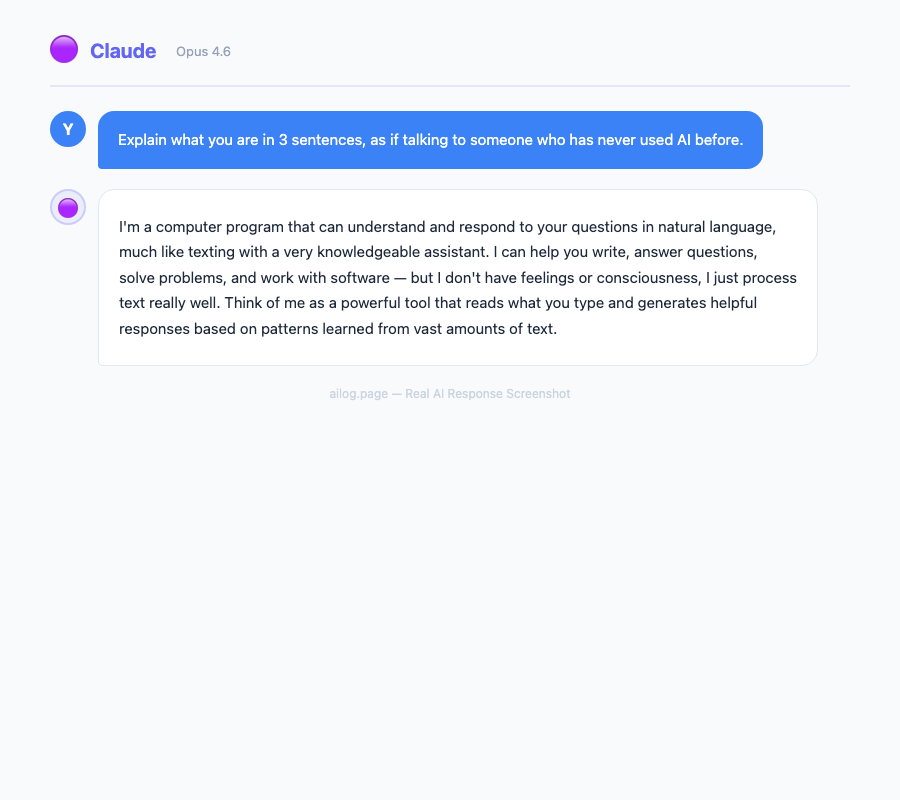
• Claude is Anthropic's AI assistant, available on web (claude.ai), desktop, and mobile — free to start
• The 200K token context window lets you analyze full documents, codebases, and books in a single conversation
• Claude excels at coding assistance, long-form writing, document analysis, and following complex instructions
• Free users get limited daily messages; Pro ($20/month) unlocks higher limits and model selection
• The biggest mistake beginners make is treating Claude like a search engine instead of a collaborator
What's Inside
- What Is Claude AI (and How It Differs from ChatGPT)
- Getting Started: Account Setup in 2 Minutes
- The Interface: What Everything Does
- Your First Prompts: What to Try
- Going Deeper: Features Most Beginners Miss
- Pricing: Free vs Pro vs Team
- What Claude Does Best (and Where It Falls Short)
- 10 Tips That Make Claude Actually Useful
- FAQ
What Is Claude AI (and How It Differs from ChatGPT)
Claude is an AI assistant built by Anthropic, a company founded by former OpenAI researchers. If you've used ChatGPT, Claude occupies the same category — you type questions or instructions, and it responds with text. But the similarities are surface-level.
Claude was built with what Anthropic calls "constitutional AI," a training approach that bakes safety principles directly into the model rather than bolting them on afterward. In practice, this means Claude tends to be more cautious about harmful content, more willing to say "I don't know," and less likely to confidently state incorrect information.
The practical differences that matter most:
- Context window: Claude processes up to 200,000 tokens (roughly 150,000 words) in a single conversation. ChatGPT's standard context is smaller. This means you can paste entire documents, books, or codebases into Claude and work with them directly.
- Writing quality: Claude produces more natural, less formulaic prose. If you've noticed ChatGPT's tendency toward certain phrases and structures, Claude's output feels distinctly different.
- Instruction following: Claude is notably better at following complex, multi-step instructions. If you give it a detailed brief with specific formatting requirements, it hits the mark more consistently.
- Coding: Both are capable, but Claude's code tends to be cleaner and better documented out of the box.
None of this means Claude is "better" than ChatGPT in every scenario. Each model has strengths. But if you're trying Claude for the first time, these differences explain why many professionals are switching.
Getting Started: Account Setup in 2 Minutes
Claude is available on three platforms:
- Web: Go to claude.ai and sign up with your email or Google account
- Desktop: Download the Mac or Windows app from Anthropic's website
- Mobile: Install the Claude app from the App Store (iOS) or Google Play (Android)
The free account gives you access to Claude's base model with daily message limits. No credit card required. The signup takes about 30 seconds — enter your email, verify it, and you're in.
One thing to know upfront: free users cannot select specific models. You'll get Claude's default model, which is currently Claude 3.5 Sonnet — a strong all-around model. Paid subscribers can switch between models depending on their needs.
The Interface: What Everything Does
Claude's interface is deliberately minimal. Here's what you're looking at:
- Chat input: The text field at the bottom where you type prompts. Press Enter to send, Shift+Enter for a new line.
- Conversation sidebar: Your chat history, organized by date. Click any previous conversation to resume it.
- File upload button: The paperclip icon lets you attach PDFs, images, code files, and other documents directly into the conversation.
- Model selector (Pro only): Below the input field, shows which Claude model you're using. Click to switch.
- New chat button: Starts a fresh conversation. Use this when switching topics — Claude works best with focused conversations rather than sprawling ones.
The "/" command menu is worth exploring early. Type "/" in the chat input to see available shortcuts. These let you quickly access features like Projects (for organizing related conversations) and setting conversation styles.
Your First Prompts: What to Try
The biggest mistake new users make is treating Claude like Google. Don't ask Claude "What is machine learning?" — that's a search query. Instead, tell Claude what you actually need.
Start with These Five Prompts
1. The Document Analyzer
Upload a PDF (report, contract, research paper) and ask: "Read this document and give me the 5 most important points, written for someone who has 2 minutes to understand the key findings."
2. The Writing Partner
Paste a draft email or document and ask: "I'm writing this to [audience]. The tone should be [professional/casual/persuasive]. Improve it while keeping my voice. Point out anything that's unclear or could be misinterpreted."
3. The Code Explainer
Paste a code snippet and ask: "Explain this code like I'm a junior developer. What does each section do? Are there any bugs or potential issues?"
4. The Learning Tutor
Pick something you're trying to learn and say: "I'm learning [topic]. I understand [what you know] but I'm struggling with [specific concept]. Explain it using an analogy from [field you know well]."
5. The Decision Helper
Describe a real decision you're facing: "I need to choose between [option A] and [option B] for [context]. Here are my constraints: [list them]. Walk me through the trade-offs."
These prompts work because they give Claude context, a specific task, and clear output expectations. Compare "Help me write an email" with "I need to decline a vendor's proposal professionally. We liked their product but the pricing is 40% above our budget. Keep it under 200 words and leave the door open for future negotiation." The second prompt produces dramatically better results.
Going Deeper: Features Most Beginners Miss
Projects
Projects let you group related conversations and set persistent instructions. Create a project called "Work Emails" with instructions like "Always use a professional but warm tone. My name is [name]. My role is [role]." Every conversation in that project will follow these instructions without you repeating them.
This feature alone saves significant time. I have projects for different clients, each with their brand voice, terminology preferences, and formatting requirements pre-loaded.
File Analysis at Scale
Claude's 200K token context window means you can upload substantial documents. A few things I've tested successfully:
- A 100-page technical specification — Claude summarized it, identified contradictions between sections, and generated a requirements checklist
- An entire quarter's worth of meeting notes — Claude extracted action items and identified recurring themes across meetings
- A full React codebase (about 8,000 lines) — Claude found three unused dependencies and suggested specific refactoring opportunities
Extended Thinking
For complex problems, Claude can show its reasoning process. This is particularly useful for math, logic puzzles, and multi-step analysis where you want to verify the model's approach, not just its answer.
Artifacts
When Claude generates code, documents, or other standalone content, it can display them as "artifacts" — separate panels alongside the conversation. This makes it easy to iterate on a piece of code or document without losing context in the chat.
Pricing: Free vs Pro vs Team
Free$0per month
- Limited daily messages
- Claude 3.5 Sonnet (default)
- File uploads
- Basic projects
- No model selection
Pro$20per month
- 5x more messages
- All Claude models
- Extended thinking
- Priority access
- Early feature access
Team$30per user/month
- Everything in Pro
- Higher usage limits
- Admin dashboard
- Shared projects
- No training on data
My recommendation: start free. Use Claude daily for a week and see if you hit the message limit. If you do, the Pro plan is worth it — the 5x increase in daily messages and model selection make a noticeable difference for regular users.
The Team plan makes sense only if you're collaborating with others and need shared projects or administrative controls. For individual use, Pro covers everything you need.
What Claude Does Best (and Where It Falls Short)
• Claude is Anthropic's AI assistant, available on web (claude.ai), desktop, and mobile — free to start
• The 200K token context window lets you analyze full documents, codebases, and books in a single conversation
• Claude excels at coding assistance, long-form writing, document analysis, and following complex instructions
• Free users get limited daily messages; Pro ($20/month) unlocks higher limits and model selection
• The biggest mistake beginners make is treating Claude like a search engine instead of a collaborator
What's Inside
- What Is Claude AI (and How It Differs from ChatGPT)
- Getting Started: Account Setup in 2 Minutes
- The Interface: What Everything Does
- Your First Prompts: What to Try
- Going Deeper: Features Most Beginners Miss
- Pricing: Free vs Pro vs Team
- What Claude Does Best (and Where It Falls Short)
- 10 Tips That Make Claude Actually Useful
- FAQ
What Is Claude AI (and How It Differs from ChatGPT)
Claude is an AI assistant built by Anthropic, a company founded by former OpenAI researchers. If you've used ChatGPT, Claude occupies the same category — you type questions or instructions, and it responds with text. But the similarities are surface-level.
Claude was built with what Anthropic calls "constitutional AI," a training approach that bakes safety principles directly into the model rather than bolting them on afterward. In practice, this means Claude tends to be more cautious about harmful content, more willing to say "I don't know," and less likely to confidently state incorrect information.
The practical differences that matter most:
- Context window: Claude processes up to 200,000 tokens (roughly 150,000 words) in a single conversation. ChatGPT's standard context is smaller. This means you can paste entire documents, books, or codebases into Claude and work with them directly.
- Writing quality: Claude produces more natural, less formulaic prose. If you've noticed ChatGPT's tendency toward certain phrases and structures, Claude's output feels distinctly different.
- Instruction following: Claude is notably better at following complex, multi-step instructions. If you give it a detailed brief with specific formatting requirements, it hits the mark more consistently.
- Coding: Both are capable, but Claude's code tends to be cleaner and better documented out of the box.
None of this means Claude is "better" than ChatGPT in every scenario. Each model has strengths. But if you're trying Claude for the first time, these differences explain why many professionals are switching.
Getting Started: Account Setup in 2 Minutes
Claude is available on three platforms:
- Web: Go to claude.ai and sign up with your email or Google account
- Desktop: Download the Mac or Windows app from Anthropic's website
- Mobile: Install the Claude app from the App Store (iOS) or Google Play (Android)
The free account gives you access to Claude's base model with daily message limits. No credit card required. The signup takes about 30 seconds — enter your email, verify it, and you're in.
One thing to know upfront: free users cannot select specific models. You'll get Claude's default model, which is currently Claude 3.5 Sonnet — a strong all-around model. Paid subscribers can switch between models depending on their needs.
The Interface: What Everything Does
Claude's interface is deliberately minimal. Here's what you're looking at:
- Chat input: The text field at the bottom where you type prompts. Press Enter to send, Shift+Enter for a new line.
- Conversation sidebar: Your chat history, organized by date. Click any previous conversation to resume it.
- File upload button: The paperclip icon lets you attach PDFs, images, code files, and other documents directly into the conversation.
- Model selector (Pro only): Below the input field, shows which Claude model you're using. Click to switch.
- New chat button: Starts a fresh conversation. Use this when switching topics — Claude works best with focused conversations rather than sprawling ones.
The "/" command menu is worth exploring early. Type "/" in the chat input to see available shortcuts. These let you quickly access features like Projects (for organizing related conversations) and setting conversation styles.
Your First Prompts: What to Try
The biggest mistake new users make is treating Claude like Google. Don't ask Claude "What is machine learning?" — that's a search query. Instead, tell Claude what you actually need.
Start with These Five Prompts
1. The Document Analyzer
Upload a PDF (report, contract, research paper) and ask: "Read this document and give me the 5 most important points, written for someone who has 2 minutes to understand the key findings."
2. The Writing Partner
Paste a draft email or document and ask: "I'm writing this to [audience]. The tone should be [professional/casual/persuasive]. Improve it while keeping my voice. Point out anything that's unclear or could be misinterpreted."
3. The Code Explainer
Paste a code snippet and ask: "Explain this code like I'm a junior developer. What does each section do? Are there any bugs or potential issues?"
4. The Learning Tutor
Pick something you're trying to learn and say: "I'm learning [topic]. I understand [what you know] but I'm struggling with [specific concept]. Explain it using an analogy from [field you know well]."
5. The Decision Helper
Describe a real decision you're facing: "I need to choose between [option A] and [option B] for [context]. Here are my constraints: [list them]. Walk me through the trade-offs."
These prompts work because they give Claude context, a specific task, and clear output expectations. Compare "Help me write an email" with "I need to decline a vendor's proposal professionally. We liked their product but the pricing is 40% above our budget. Keep it under 200 words and leave the door open for future negotiation." The second prompt produces dramatically better results.
Going Deeper: Features Most Beginners Miss
Projects
Projects let you group related conversations and set persistent instructions. Create a project called "Work Emails" with instructions like "Always use a professional but warm tone. My name is [name]. My role is [role]." Every conversation in that project will follow these instructions without you repeating them.
This feature alone saves significant time. I have projects for different clients, each with their brand voice, terminology preferences, and formatting requirements pre-loaded.
File Analysis at Scale
Claude's 200K token context window means you can upload substantial documents. A few things I've tested successfully:
- A 100-page technical specification — Claude summarized it, identified contradictions between sections, and generated a requirements checklist
- An entire quarter's worth of meeting notes — Claude extracted action items and identified recurring themes across meetings
- A full React codebase (about 8,000 lines) — Claude found three unused dependencies and suggested specific refactoring opportunities
Extended Thinking
For complex problems, Claude can show its reasoning process. This is particularly useful for math, logic puzzles, and multi-step analysis where you want to verify the model's approach, not just its answer.
Artifacts
When Claude generates code, documents, or other standalone content, it can display them as "artifacts" — separate panels alongside the conversation. This makes it easy to iterate on a piece of code or document without losing context in the chat.
Pricing: Free vs Pro vs Team
Free$0per month
- Limited daily messages
- Claude 3.5 Sonnet (default)
- File uploads
- Basic projects
- No model selection
Pro$20per month
- 5x more messages
- All Claude models
- Extended thinking
- Priority access
- Early feature access
Team$30per user/month
- Everything in Pro
- Higher usage limits
- Admin dashboard
- Shared projects
- No training on data
My recommendation: start free. Use Claude daily for a week and see if you hit the message limit. If you do, the Pro plan is worth it — the 5x increase in daily messages and model selection make a noticeable difference for regular users.
The Team plan makes sense only if you're collaborating with others and need shared projects or administrative controls. For individual use, Pro covers everything you need.
What Claude Does Best (and Where It Falls Short)
| Task | Claude's Strength | Rating |
|---|---|---|
| Code generation and debugging | Clean, well-documented code with fewer bugs | Excellent |
| Long document analysis | 200K context handles full reports and books | Excellent |
| Writing assistance | Natural prose, follows style instructions well | Excellent |
| Complex instructions | Multi-step briefs executed accurately | Excellent |
| Data analysis | Good with CSV/structured data in context | Good |
| Real-time information | No web browsing; knowledge has a cutoff date | Limited |
| Image generation | Cannot generate images (text only) | N/A |
| Math and reasoning | Strong but not the best among current models | Good |
Useful Resources
Related Reading
- I Asked Claude a Hard Question. It Answered with a Chart.
- Why Claude's Excel and PowerPoint Add-ins Might Replace Your Analyst
- Claude Now Remembers Everything — and It Changed How I Use AI
- Claude vs ChatGPT for Coding: One Builds Better, the Other Ships Faster
- I Used ChatGPT and Claude to Write the Same Resume. One Got the Interview.
- I Tested DeepSeek, ChatGPT, and Claude Side by Side
- Stop Paying for GitHub Copilot Until You've Tried Claude Code
- Copilot vs Cursor vs Claude Code — Which AI Coding Tool Wins?
- Your AI Writes the Code. Now Another AI Reviews It.
- Anthropic Just Gave Claude a Desktop. Here's What It Can Do.
- Claude Can Draw Now — I Tested Its Charts Against ChatGPT and Gemini
- How Much Does the Claude API Actually Cost? I Tracked 30 Days of Usage.
- Claude's March 2026 Promotion Doubles Your Usage — Here's the Catch
- Don't Use Claude AI Like ChatGPT — a Power User's Complete Guide
- 9 Prompt Tricks I Wish Someone Told Me Sooner
- I'm a Teacher Who Started Using Claude for Lesson Plans. My Prep Time Dropped 60%.
Real AI Responses (Tested March 2026)
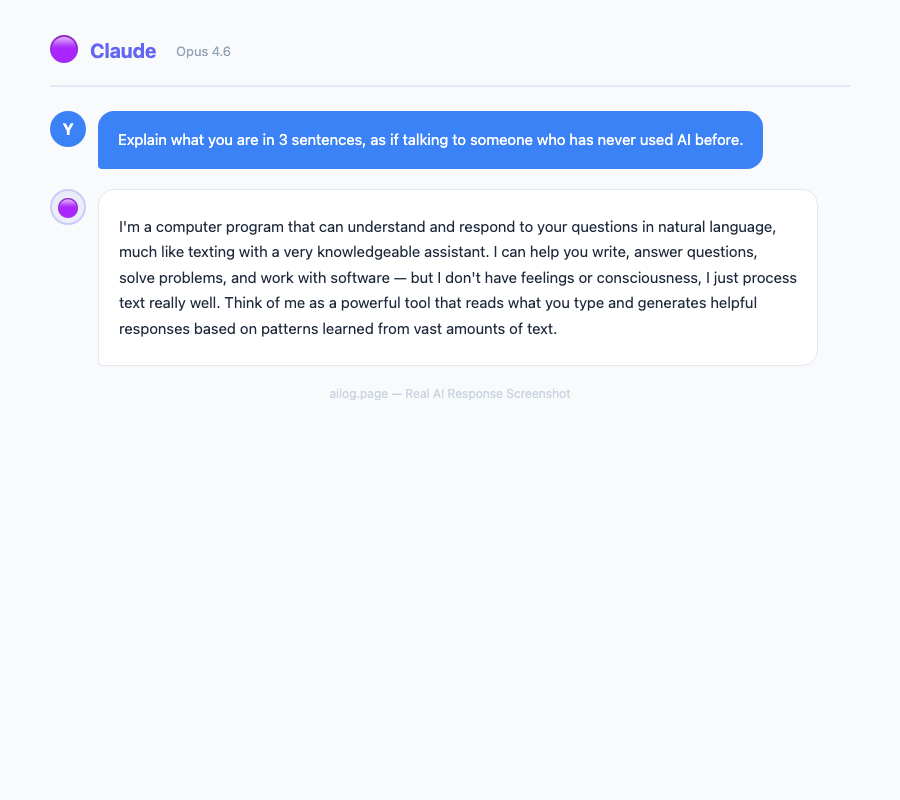
The honest assessment: Claude is the best choice for writing-heavy and coding-heavy workflows. If you spend most of your time drafting documents, reviewing code, or analyzing long texts, Claude will serve you better than alternatives. For image generation, real-time web search, or heavy mathematical reasoning, other tools are stronger.
10 Tips That Make Claude Actually Useful
1. Give Context Before the Task
Instead of "Write a product description," try "I sell handmade ceramic mugs to design-conscious millennials. My brand voice is warm but minimalist. Write a product description for a new 12oz mug in matte black, max 100 words." Context transforms generic output into something you can actually use.
2. Use the System Prompt for Recurring Needs
If you always want Claude to respond in a certain way, set it in the project instructions. I set "Always provide code examples in TypeScript unless I specify otherwise" in my coding project and never have to mention it again.
3. Ask Claude to Think Step by Step
For complex problems, add "Think through this step by step before giving your answer." This triggers more careful reasoning and catches errors that quick responses miss.
4. Iterate, Don't Start Over
If Claude's first response isn't perfect, refine it in the same conversation. "Good, but make the tone more casual" or "That code works but use async/await instead of callbacks." Claude maintains full conversation context and improves with each iteration.
5. Upload Files Instead of Pasting
For documents, code files, or spreadsheets, upload the file directly rather than copying and pasting. File uploads preserve formatting, and Claude handles PDFs, images, CSVs, and most common file types.
6. Be Specific About Output Format
Tell Claude exactly what format you want: "Give me a bulleted list," "Write this as a table with three columns," or "Format this as a JSON object." Clear format instructions save editing time.
7. Ask for Alternatives
"Give me three different approaches to this problem with trade-offs for each" produces more useful results than asking for a single answer. You'll often find that the second or third option is better suited to your specific situation.
8. Use Claude for Review, Not Just Generation
Paste your own writing or code and ask Claude to review it. "Find issues in this code," "What's unclear in this email," or "What arguments am I missing in this proposal" — Claude's analytical capabilities often exceed its generative ones.
9. Set Constraints
Constraints produce better output: "Explain this in under 100 words," "Use only vocabulary a 10-year-old would know," "Respond in exactly 5 bullet points." Constraints force Claude to prioritize and compress, which usually improves quality.
10. Don't Anthropomorphize
Claude is a tool, not a person. You don't need to say "please" or "thank you" (though it's fine if you do). More importantly, don't assume Claude remembers things from previous conversations — each new conversation starts fresh. If context matters, provide it.
FAQ
Is Claude AI free?
Yes, Claude offers a free tier with daily message limits. You can sign up at claude.ai without a credit card. The free tier includes Claude's base model and file uploads. For heavier use, the Pro plan costs $20/month.
Is my data safe with Claude?
Anthropic states that conversations with Claude are not used to train future models unless you explicitly opt in. The Team and Enterprise plans include additional data isolation guarantees. For sensitive work, review Anthropic's privacy policy for your specific use case.
Can Claude access the internet?
Claude does not browse the web in real-time. Its knowledge comes from training data with a specific cutoff date. For tasks requiring current information, you'll need to paste or upload the relevant data into the conversation yourself.
How does Claude compare to ChatGPT for beginners?
Both are excellent starting points. ChatGPT has a larger feature set (web browsing, image generation, plugins). Claude has better writing quality, a larger context window, and stronger instruction following. For writing and coding workflows, Claude has an edge. For general-purpose use with multimedia features, ChatGPT offers more tools. See our detailed comparison for more.
What are the message limits on the free plan?
Anthropic doesn't publish exact numbers, and limits vary based on server demand. In practice, free users typically get around 10-20 longer conversations per day before hitting the limit. The limit resets every few hours, so spreading usage across the day helps.
Getting Started Today
The best way to learn Claude is to use it. Sign up at claude.ai, start with one of the five prompt templates above, and see how Claude handles a task you'd normally do manually.
Focus on one use case first. If you're a developer, start with code review. If you're a writer, start with editing. If you're in business, start with document analysis. Master one workflow before expanding to others — you'll build intuition for how Claude thinks and what it needs from you to produce great results.
The users who get the most from Claude aren't the ones who ask the cleverest questions. They're the ones who provide the clearest context. Start there, and everything else follows.
Sources
- Getting Started with Claude — Anthropic Help Center
- Anthropic — Claude's Developer
- How to Use Claude AI: A Beginner's Guide — Dorik
- How to Use Claude AI: Getting Started — Mattrics
- Claude AI Features, Use Cases, and Benefits — GraffersID
The honest assessment: Claude is the best choice for writing-heavy and coding-heavy workflows. If you spend most of your time drafting documents, reviewing code, or analyzing long texts, Claude will serve you better than alternatives. For image generation, real-time web search, or heavy mathematical reasoning, other tools are stronger.
10 Tips That Make Claude Actually Useful
1. Give Context Before the Task
Instead of "Write a product description," try "I sell handmade ceramic mugs to design-conscious millennials. My brand voice is warm but minimalist. Write a product description for a new 12oz mug in matte black, max 100 words." Context transforms generic output into something you can actually use.
2. Use the System Prompt for Recurring Needs
If you always want Claude to respond in a certain way, set it in the project instructions. I set "Always provide code examples in TypeScript unless I specify otherwise" in my coding project and never have to mention it again.
3. Ask Claude to Think Step by Step
For complex problems, add "Think through this step by step before giving your answer." This triggers more careful reasoning and catches errors that quick responses miss.
4. Iterate, Don't Start Over
If Claude's first response isn't perfect, refine it in the same conversation. "Good, but make the tone more casual" or "That code works but use async/await instead of callbacks." Claude maintains full conversation context and improves with each iteration.
5. Upload Files Instead of Pasting
For documents, code files, or spreadsheets, upload the file directly rather than copying and pasting. File uploads preserve formatting, and Claude handles PDFs, images, CSVs, and most common file types.
6. Be Specific About Output Format
Tell Claude exactly what format you want: "Give me a bulleted list," "Write this as a table with three columns," or "Format this as a JSON object." Clear format instructions save editing time.
7. Ask for Alternatives
"Give me three different approaches to this problem with trade-offs for each" produces more useful results than asking for a single answer. You'll often find that the second or third option is better suited to your specific situation.
8. Use Claude for Review, Not Just Generation
Paste your own writing or code and ask Claude to review it. "Find issues in this code," "What's unclear in this email," or "What arguments am I missing in this proposal" — Claude's analytical capabilities often exceed its generative ones.
9. Set Constraints
Constraints produce better output: "Explain this in under 100 words," "Use only vocabulary a 10-year-old would know," "Respond in exactly 5 bullet points." Constraints force Claude to prioritize and compress, which usually improves quality.
10. Don't Anthropomorphize
Claude is a tool, not a person. You don't need to say "please" or "thank you" (though it's fine if you do). More importantly, don't assume Claude remembers things from previous conversations — each new conversation starts fresh. If context matters, provide it.
FAQ
Is Claude AI free?
Yes, Claude offers a free tier with daily message limits. You can sign up at claude.ai without a credit card. The free tier includes Claude's base model and file uploads. For heavier use, the Pro plan costs $20/month.
Is my data safe with Claude?
Anthropic states that conversations with Claude are not used to train future models unless you explicitly opt in. The Team and Enterprise plans include additional data isolation guarantees. For sensitive work, review Anthropic's privacy policy for your specific use case.
Can Claude access the internet?
Claude does not browse the web in real-time. Its knowledge comes from training data with a specific cutoff date. For tasks requiring current information, you'll need to paste or upload the relevant data into the conversation yourself.
How does Claude compare to ChatGPT for beginners?
Both are excellent starting points. ChatGPT has a larger feature set (web browsing, image generation, plugins). Claude has better writing quality, a larger context window, and stronger instruction following. For writing and coding workflows, Claude has an edge. For general-purpose use with multimedia features, ChatGPT offers more tools. See our detailed comparison for more.
What are the message limits on the free plan?
Anthropic doesn't publish exact numbers, and limits vary based on server demand. In practice, free users typically get around 10-20 longer conversations per day before hitting the limit. The limit resets every few hours, so spreading usage across the day helps.
Getting Started Today
The best way to learn Claude is to use it. Sign up at claude.ai, start with one of the five prompt templates above, and see how Claude handles a task you'd normally do manually.
Focus on one use case first. If you're a developer, start with code review. If you're a writer, start with editing. If you're in business, start with document analysis. Master one workflow before expanding to others — you'll build intuition for how Claude thinks and what it needs from you to produce great results.
The users who get the most from Claude aren't the ones who ask the cleverest questions. They're the ones who provide the clearest context. Start there, and everything else follows.